Logos for Life Itself
We've created the following guide on how to use our logos and how to create alternative versions of the logo.
To get the logo: right click and select copy image or save image as.
Full brand guidelines and style guide: https://drive.google.com/file/d/1vR-yAyoxG6o3xaOVv0qvyOiIlYaj44Wb/view?usp=drive_link
Logo Assets
Filetype: PNG




Filetype: SVG


How to use our logos
In the assets folder above you will notice we have several variations of our logo:
- Icon only: This can be used where there is not enough room to include text or a place where Life Itself is only represented by the icon
- Icon & horizontal text: This should be used when possible. It works best to represent Life Itself where the space for the logo is wider than it is taller, such as a presentation header
- Icon & condensed text: This is best used to represent Life Itself when there is limited width space for the logo, but you want to use the text
- SVG files: All files in SVG format can be used on websites for optimal storage and scability
- Black logo: All logo variations are available in black. Use this only if it is not possible to use the colour version.
How to create logo variations for projects of Life Itself
Sometimes it is possible that we need to create a logo variation for a particular project. This is a step-by-step to do this.
- Download the icon only png file
- Use Canva (Account access available in Bitwarden) to create new logo variation
- Create a new custom design with the dimensions 1200x500px
- Add the icon to the left of the design at full height
- Add the text "Life Itself" using the font Restora (note if you cannot find the font on Canva this is because it is a custom font. It is available on the Life Itself Canva, or can be downloaded from Google if using another Canva account)
- Add project title below "Life Itself" using Restora and Italicized
- Resize the text so that "Life Itself" and the project title are balanced with width and height (see image below)
- Download the design as a png and svg file with a transparent background
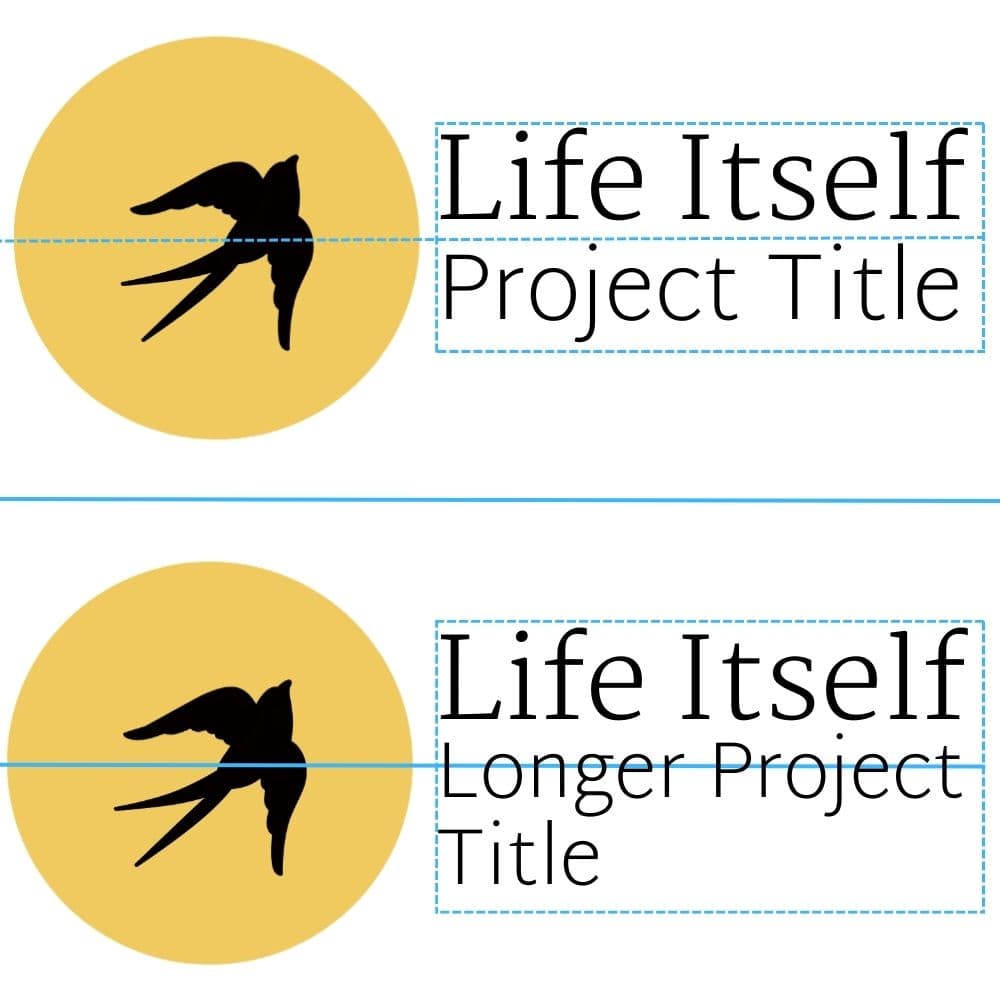 ]
Examples of text balancing for longer and shorter project titles. Observe that the combined height of the text is balanced along the horizontal center with equal spacing above and below. Also note that the combined text has less height than the logo icon.
]
Examples of text balancing for longer and shorter project titles. Observe that the combined height of the text is balanced along the horizontal center with equal spacing above and below. Also note that the combined text has less height than the logo icon.